
Troubleshooting
Double NAT Guide
Double NAT means your traffic is being translated by two routing devices instead of one. In real homes this often appears as two or more routers, an ISP gateway plus your own router, or a gateway plus mesh system. That extra routing layer often makes port forwarding, game hosting, CCTV remote access, NAS access, and direct inbound connections fail even when the rule on your own router looks correct.
Expanded troubleshooting review - May 7, 2026
Quick context
Double NAT usually happens when an ISP gateway sits in front of your own router, or when another router, mesh system, or modem-router combo is still doing NAT upstream. The most important idea is simple: inbound traffic has to pass every device in the path. If one device forwards traffic but the upstream device does not, the connection still dies before it reaches your server, PC, camera, or NAS.
Use this order before you start changing settings.
See the flow visually
How double NAT blocks inbound traffic
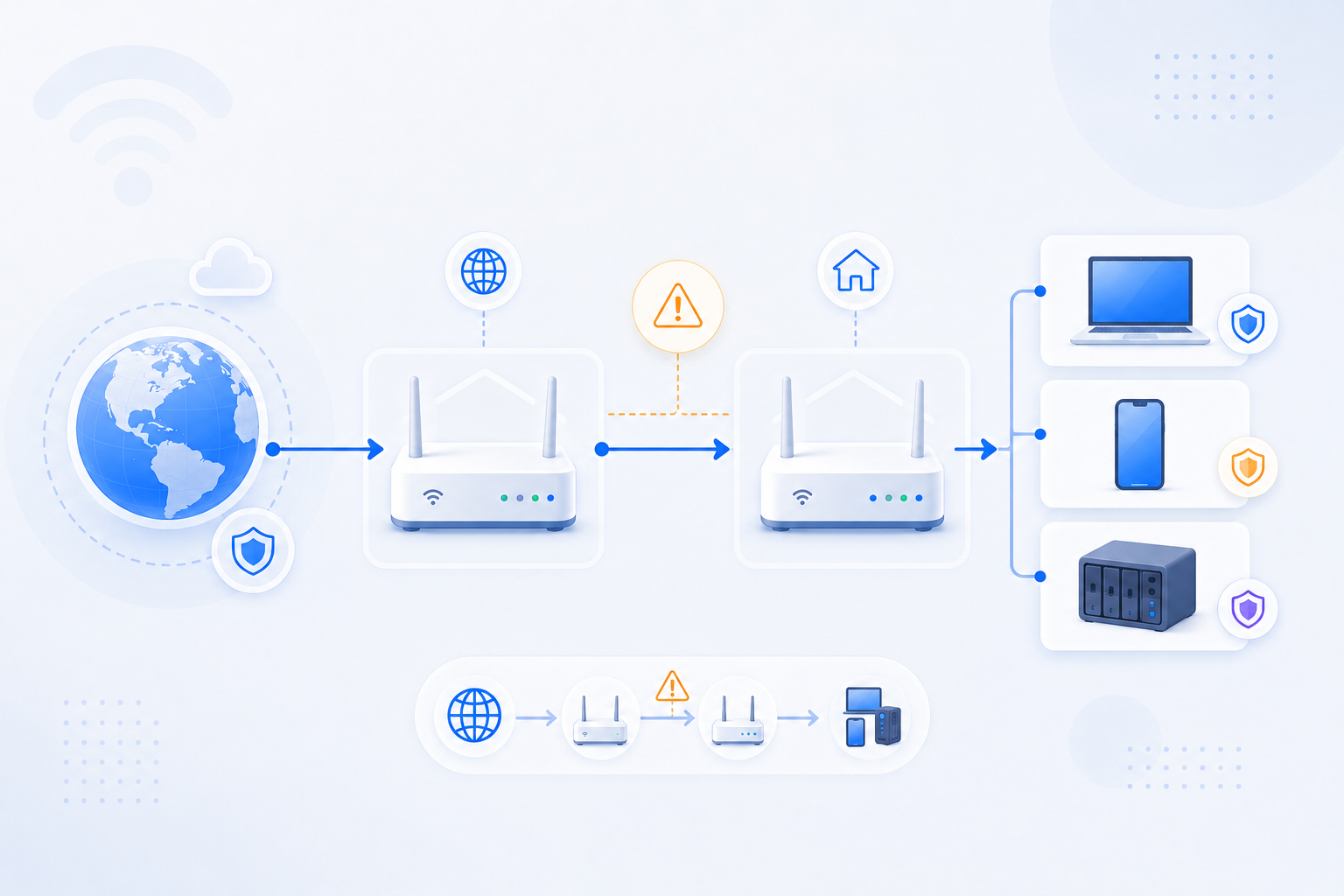
Traffic from the Internet has to pass the ISP gateway and then your own router. If only one device knows where to send the traffic, the connection still fails.
- Your own router may look correctly configured while the upstream gateway silently blocks the path.
- A private WAN IP on your own router is one of the strongest early signals.
- The goal is to decide which device should be the main router and simplify the path.
Related visual cues
Helpful visuals for this page
Selected RouterWiz visuals that match this topic.
What to know first
Step-by-step
- Identify the device path first. Write it down in plain language, such as Internet -> ISP gateway -> personal router -> PC, Internet -> ISP gateway -> mesh router -> NAS, or Internet -> ISP gateway -> main router -> second router -> final device. This prevents you from changing the wrong device.
- Log in to your own router and find its WAN or Internet IP address. Then compare that value with the public IP shown by a site like RouterWiz What Is My IP.
- If the WAN IP on your router is private, such as 192.168.x.x, 10.x.x.x, or 172.16-31.x.x, another NAT device is probably upstream. That is the classic Double NAT pattern.
- Confirm whether the upstream device is an ISP gateway, modem-router combo, another wireless router, a mesh base station, or a provider-managed home hub. The fix depends on which device owns the upstream NAT layer.
- Decide which device should be the main router. In most homes, one device should handle NAT, DHCP, port forwarding, and firewall rules. The other device should ideally act only as a modem, bridge, or access point.
- If the second router is only there to improve Wi-Fi coverage or add extra LAN ports, strongly consider switching that second router to AP mode instead of router mode. This is one of the most practical ways to remove accidental Double NAT in homes with two routers.
- If your ISP gateway supports bridge mode, IP passthrough, or modem-only mode, check whether that is the cleanest option for your setup. This is usually the simplest long-term solution when available.
- If bridge mode is not available, check whether the upstream gateway can place your own router in DMZ or forward the required ports to the WAN IP of your own router. In practical terms, this often means ISP gateway DMZ -> personal router WAN IP -> personal router port forwarding -> final device.
- If neither bridge nor DMZ is possible, you may need dual forwarding: first forward the port on the upstream gateway to the WAN IP of your router, then forward the same port on your router to the final internal device.
- After changing the upstream path, re-check your router WAN IP, save/apply all settings, and test again from outside your network. A good fix should simplify the path or make both forwarding layers consistent.
- If the upstream device is ISP-managed and key options are missing, document the exact model and ask whether bridge mode, public IP, IP passthrough, or firewall exceptions are supported on that service plan.
Checks and notes
- Private WAN IP ranges such as 192.168.x.x, 10.x.x.x, or 172.16-31.x.x strongly suggest upstream NAT.
- Some ISP gateways use 100.64.0.0/10 or another shared path that looks similar to CGNAT. Double NAT and CGNAT can look alike, so compare the routing path carefully.
- If your public IP changes on the web but your router WAN IP still stays private, the upstream gateway is still the device exposed to the ISP, not your own router.
- If Wi-Fi still works after changing one device to AP mode, that does not mean routing is correct. Re-check which device is issuing DHCP and which device owns the WAN connection.
- If you use two or more routers, verify whether the extra device is truly in AP mode. Many users connect a second router by LAN but leave router mode enabled, which still creates a second NAT layer.
- Hairpin NAT or NAT loopback behavior can confuse local tests. A service may fail when tested from inside the same network even though the external path is fixed. Use an outside network when possible.
- Bridge mode changes can disrupt Internet, IPTV, VoIP, or provider-managed features if the ISP hardware has extra roles.
- Mesh systems can hide routing behavior behind a simple app UI. Verify whether the mesh base station is in router mode or bridge mode before you assume the problem is solved.
Warnings
- Do not change bridge mode casually without confirming how your ISP connection is provisioned.
- Do not assume DMZ and bridge mode are the same thing. DMZ still leaves the upstream gateway in the path, while bridge mode usually removes that NAT layer.
- If your ISP gateway also controls TV or phone service, bridge changes can affect more than just Internet access.
- Opening ports on two devices without documenting the path can make the setup harder to troubleshoot later.
FAQ
What is the easiest way to recognize Double NAT?
The fastest practical test is to compare the WAN IP on your own router with the public IP shown on the web. If your router WAN IP is private instead of public, there is probably another NAT device upstream. In plain terms, your router is not directly facing the Internet.
What setups most often cause Double NAT at home?
The most common pattern is an ISP gateway in front of a second personal router. Other common patterns include modem-router combos plus another router, mesh systems left in router mode behind an ISP hub, a second wireless router added to extend coverage, or a spare router reused as a gateway instead of a true access point. In practice, many homes reach this state simply because two or more router-class devices are active at the same time.
Can Double NAT happen when I use two or more routers on purpose?
Yes. This is one of the most common real-world causes. If you have an ISP gateway, then your own main router, and then another router or mesh node still running in router mode, you may create multiple NAT layers without noticing it. In those layouts, RouterWiz should treat the full chain as the real path, not just the device you happen to log in to first.
Which fix should I try first: bridge mode, DMZ, or dual forwarding?
If your ISP supports it and you understand the service implications, bridge mode or IP passthrough is usually the cleanest first choice because it removes one NAT layer. If that is not available, DMZ toward your own router is often easier than maintaining two full forwarding tables. Dual forwarding is usually the most manual option and best treated as a fallback when cleaner modes are unavailable.
What if I use a second router only for Wi-Fi coverage?
In that case, AP mode is usually the first thing to check. If the second device is only extending wireless coverage or adding LAN ports, it usually does not need to perform NAT at all. Leaving it in router mode by accident is one of the most common reasons homes with two routers end up in Double NAT.
How does ISP gateway DMZ to my router actually help?
DMZ on the ISP gateway can make your personal router the practical next hop for inbound traffic. It does not remove the upstream gateway from the path, but it can reduce how many individual forwarding rules you must maintain there. A common workable chain is ISP gateway DMZ to your router WAN IP, then normal port forwarding on your own router to the final device.
Why does port forwarding fail even when my own router rule looks perfect?
Because your own router may not be the first device receiving inbound traffic from the Internet. If the upstream gateway never forwards the request to your router, your downstream rule is never reached. That is why Double NAT is so frustrating: the visible rule looks right, but the real break happens one device earlier.
How is Double NAT different from CGNAT?
Double NAT usually means you still control two devices within or near your home network path, such as an ISP gateway and your own router. CGNAT usually means the ISP shares public IPv4 upstream in their carrier network, so the problem is outside your home and cannot be fully fixed with local router settings alone.
Can I leave both devices as routers and still make port forwarding work?
Yes, sometimes. You can forward on both devices or place the downstream router in the upstream DMZ. But this is usually less clean than removing one NAT layer, and it tends to be harder to document, support, and maintain over time.
What should Korean home users watch for specifically?
A common Korean pattern is ISP equipment from KT, SK Broadband, or LG U+ in front of a personal router such as ipTIME. In that layout, users often log in to the personal router and assume the job is done, while the ISP device still owns the real upstream path. If your router WAN IP is private, always check the ISP hardware before blaming the port rule alone.
Recommended references
Use these after reading the RouterWiz guide. RouterWiz explains the decision order first, then these sources help you confirm bridge mode, DMZ, or two-router alternatives in more detail.
Treat the RouterWiz page as the main workflow. Use external links to verify specific vendor terminology, watch a short walkthrough, or compare fallback approaches when bridge mode is not available.
Official bridge-mode references
Use these when you want to confirm what double NAT is and why bridge mode or a single active router is usually the cleanest fix.
Fix Double NAT when two routers run at the same time
Google Nest Help
Google's help article explains how double NAT happens, why port forwarding can fail, and why removing one active router layer is usually the preferred fix.
This is a solid vendor-style explanation of the same pattern RouterWiz describes: two routing layers create confusion, and the cleanest long-term answer is usually to simplify the path.
Bridge mode
Google Nest Help
Google's bridge-mode guide explains when bridge mode should be used and why it matters when only one device should handle DHCP and routing.
Useful when users need a concrete explanation of what bridge mode changes and what features they may lose by turning a router into an access-point-like role.
Helpful walkthroughs and second opinions
Use these when the basic definition is already clear and you want another explanation of DMZ, dual forwarding, or symptom-driven troubleshooting.
Fix Double NAT: See How to Solve Connectivity Issues
WhatIsMyIP.com
A short video walkthrough that covers common symptoms, bridge mode, DMZ, and why a second router layer often breaks gaming or inbound services.
Helpful for users who understand better from a quick visual walkthrough than from a text-only article.
What Is Double NAT? How to Fix Double NAT
WhatIsMyIP.com
A longer article that walks through recognition methods, bridge mode, DMZ, and why the WAN IP comparison test is so useful.
This is a good second read after the RouterWiz page because it reinforces the same troubleshooting order with extra examples.