
Tools
Use web tools that explain the result and point to the next action.
RouterWiz tools should not act like isolated utilities. Each result needs context, likely causes, and a direct path into the right guide or troubleshooting flow.
How to use RouterWiz tools
- Start with the smallest tool that answers your current question.
- Treat each result as part of a router or WAN workflow, not just a metric.
- Move into the linked guide or troubleshooting path as soon as the result narrows the problem.
- Use Browser Assist or Local Agent later only when the lighter web path is no longer enough.
Ground rules
- Port checks stay limited to the requester public IP path.
- Hostname and URL tools should only target public routes, not private LAN addresses.
- The tools hub stays focused on router setup, remote access, DNS, and web reachability.
Related visual cues
Helpful visuals for this page
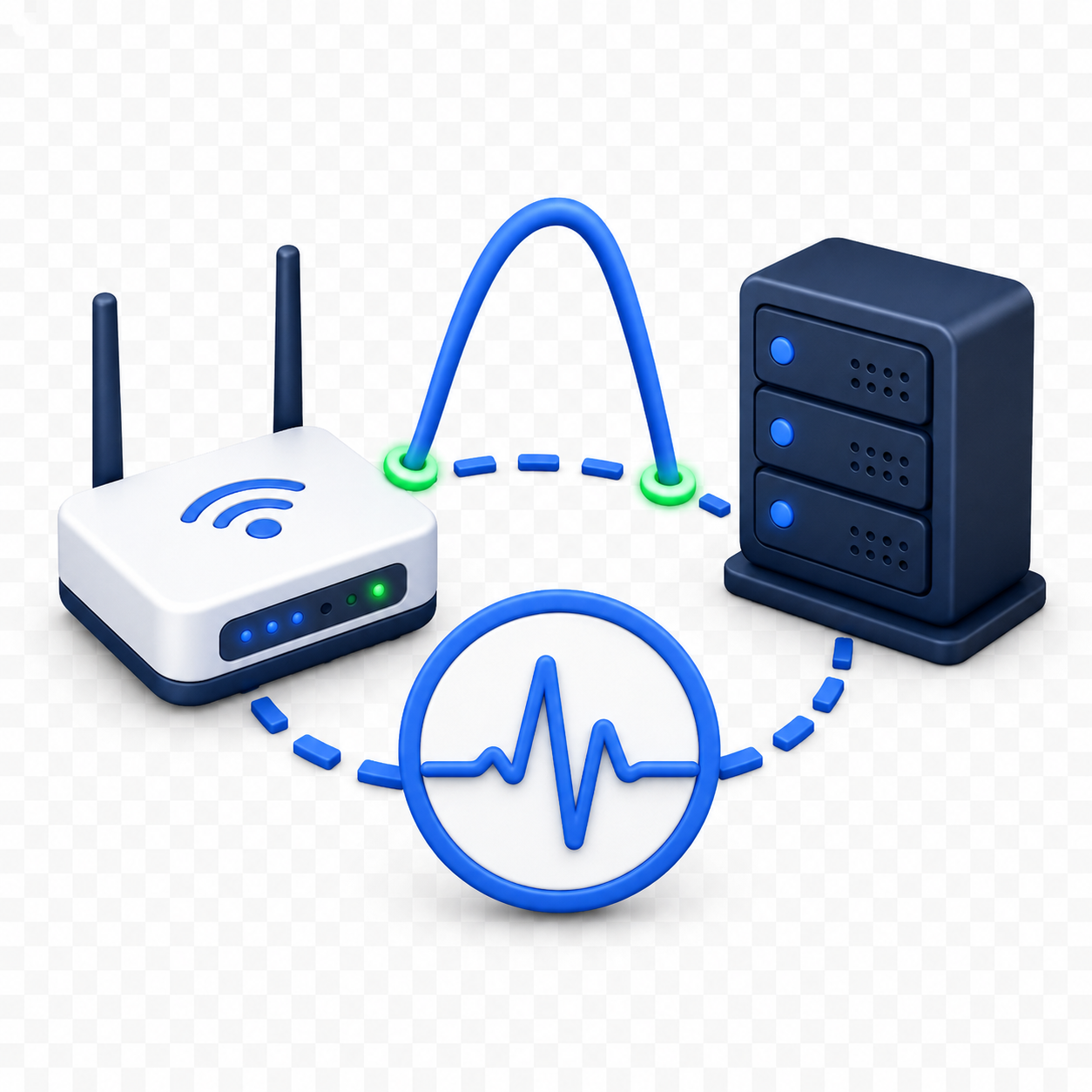
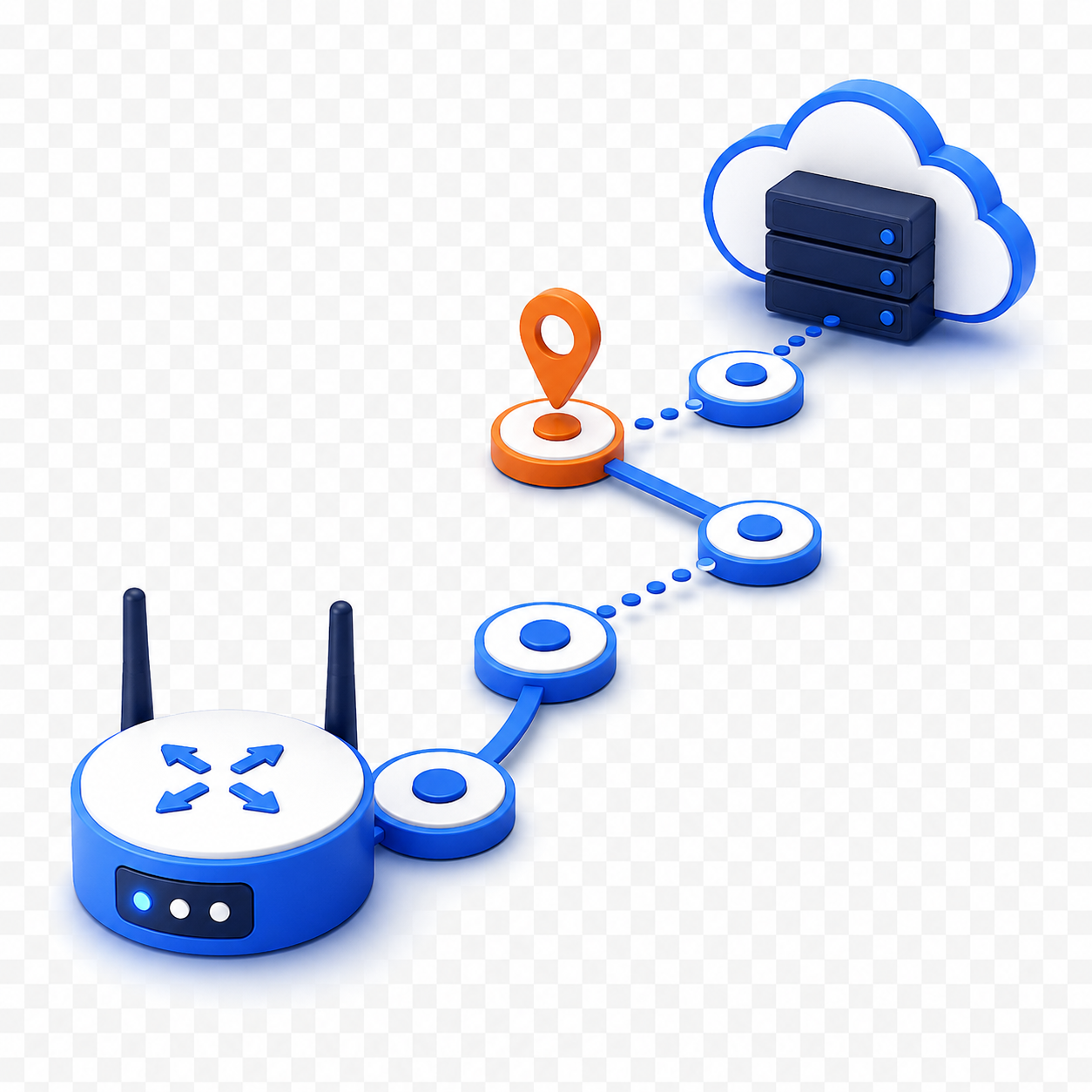
Selected visuals from the generated RouterWiz asset set for this hub.

Web-first tools
Start with the tools that can run right in the browser today.
These are the tools RouterWiz can execute on the web right now for public IP, ports, DNS, headers, TLS, and guided router values.

What Is My IP
Check the public IP your current network shows to the Internet before deeper diagnosis.
Open toolIP Lookup
Read registry, prefix, ASN, and provider context behind a public IP.
Open toolIP Location
Read country, city, timezone, and provider context behind a public IP.
Open tool
Public IP JSON API
Return the requester IP as plain text or JSON for dashboards, setup pages, or WAN checks.
Open toolAPI Docs
Browse the full public API list with request examples, guardrails, and RouterWiz workflow endpoints.
Open tool
DDNS Hostname Checker
Compare your current public IP with the hostname records and public resolver answers.
Open tool
Port Checker
Test whether a TCP port appears open on your current public IP.
Open toolPublic Service Check
Resolve a public host, test the TCP port, and confirm whether HTTP or HTTPS responds.
Open tool
DNS Lookup
Resolve A, AAAA, or CNAME records before troubleshooting DDNS or HTTPS.
Open tool
DNS Propagation
Compare public resolver answers side by side before blaming DDNS or HTTPS.
Open tool
Reverse DNS
Check PTR hostnames for a public IP when you need more WAN-side context.
Open tool
HTTP Headers
Inspect response headers, redirects, and server behavior for a public URL.
Open tool
SSL Check
Read certificate validity, issuer, and TLS details for a hostname and port.
Open tool
NAT Path Checker
Compare public IP and router WAN IP to judge Double NAT or CGNAT risk.
Open toolNAT Type Checker
Combine public IP, WAN clues, an optional port check, and browser NAT probe signals.
Open tool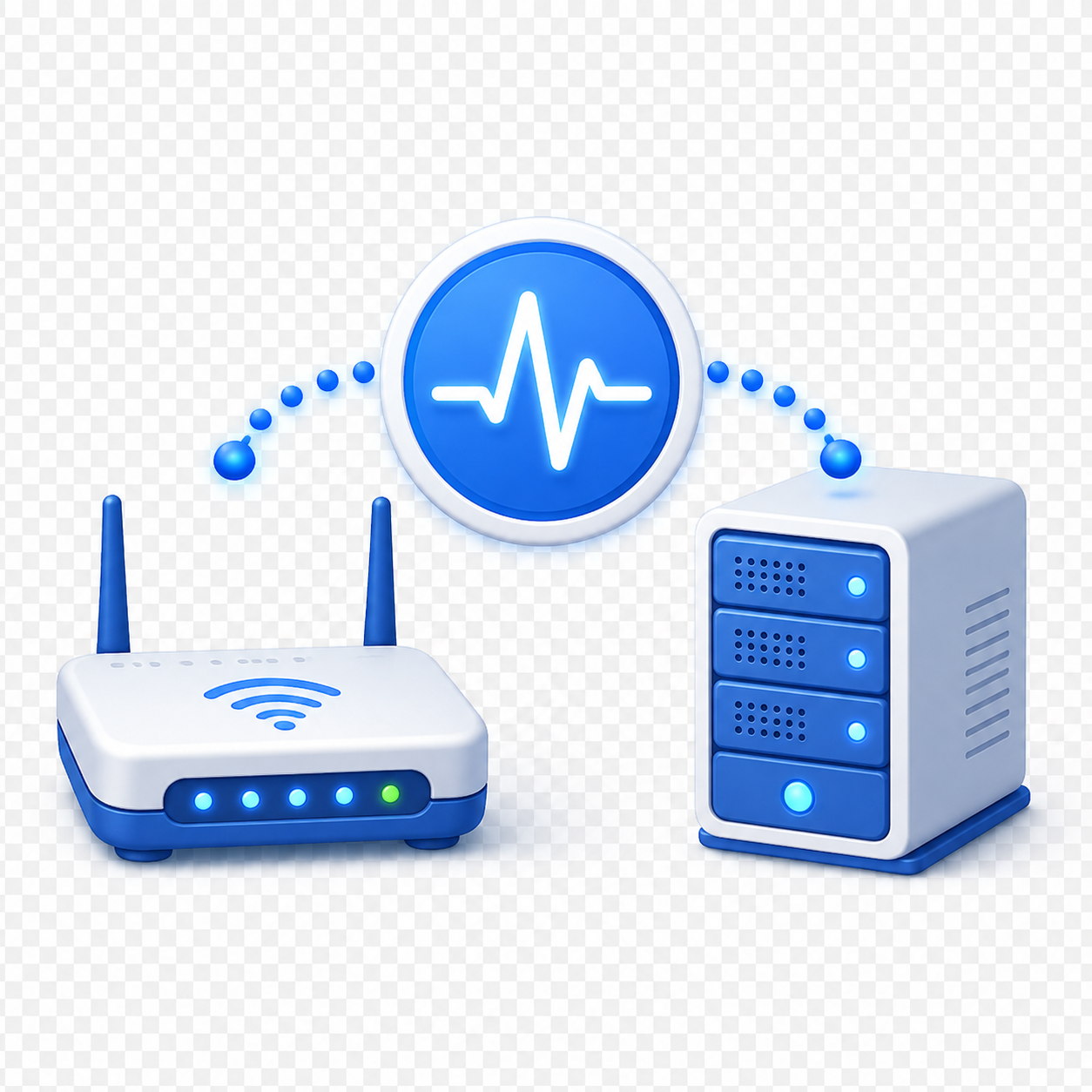
Ping
Send a simple ICMP reachability check before deeper path or app diagnosis.
Open tool
Traceroute
Walk the early public route hop by hop when you need path context.
Open tool
Port Forwarding Wizard
Generate router-ready values for service name, port, protocol, and internal IP.
Open tool
Router Login Helper
Narrow down the right gateway, brand hostname, and login route first.
Open toolAfter the result
Keep the next move close to the tool output.
Most users need either a troubleshooting path or the right router guide as soon as the first tool finishes.
If inbound access still fails
If you need more path checks
When the next blocker is the live router page
Learn what the result means
Keep the explanation layer close to the tools.
A good tools hub should let users step sideways into concepts, terminology, and short FAQ answers without losing the task they came to finish.

Learn
Understand public IP, ports, gateways, NAT, and other foundations behind the results.
Open referenceGlossary
Decode the short network terms that appear in tool outputs and router screens.
Open referenceRouter Features
Review NAT, firewall, DDNS, DHCP, and UPnP concepts that affect diagnosis.
Open reference
FAQ
Keep short answers nearby when a result looks familiar but still confusing.
Open reference