
Troubleshooting
Port Forwarding Not Working
If the router rule is saved but the port still appears closed, do not keep guessing in the admin page. Most failures come from a repeat pattern: the app is not listening, the target IP changed, the firewall blocks the port, or the upstream network path is broken by Double NAT, CGNAT, or ISP restrictions.
Expanded troubleshooting review - May 7, 2026
Quick context
Most failed port forwarding cases are not random. They usually come from one of a few repeat causes: no local listener, wrong target IP, blocked firewall, wrong protocol, Double NAT, or CGNAT. The fastest path is not opening more random rules. The fastest path is checking each layer in order, from the final device outward to the public network path.
Use this order before you start changing settings.
See the flow visually
Why a saved rule can still show a closed port
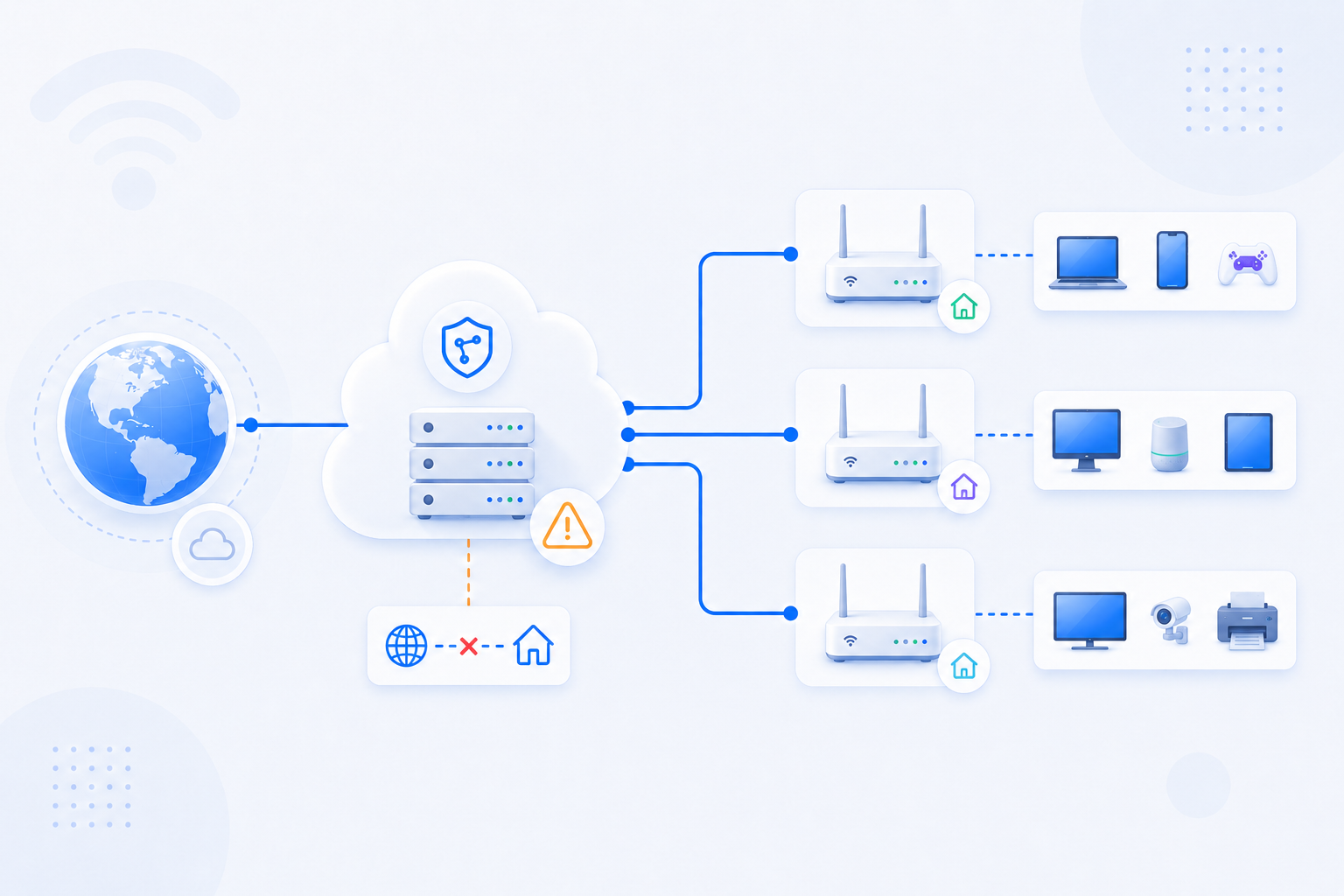
A router rule is only one part of the chain. The app must listen, the internal IP must match, the firewall must allow the traffic, and the upstream path must actually deliver the request.
- A closed result does not always mean the router rule itself is wrong.
- Port forwarding only works when the service behind the rule is reachable at the final device.
- The quickest fix usually comes from checking layers in order instead of repeating the same router edit.
Related visual cues
Helpful visuals for this page
Selected RouterWiz visuals that match this topic.
What to know first
Step-by-step
- Start at the target device, not at the router UI. Confirm the app, server, camera software, NAS service, or game host is actually running and listening on the expected port.
- Check whether the service is bound to the right network interface. A server listening only on localhost, or on the wrong IP, will still look closed from outside.
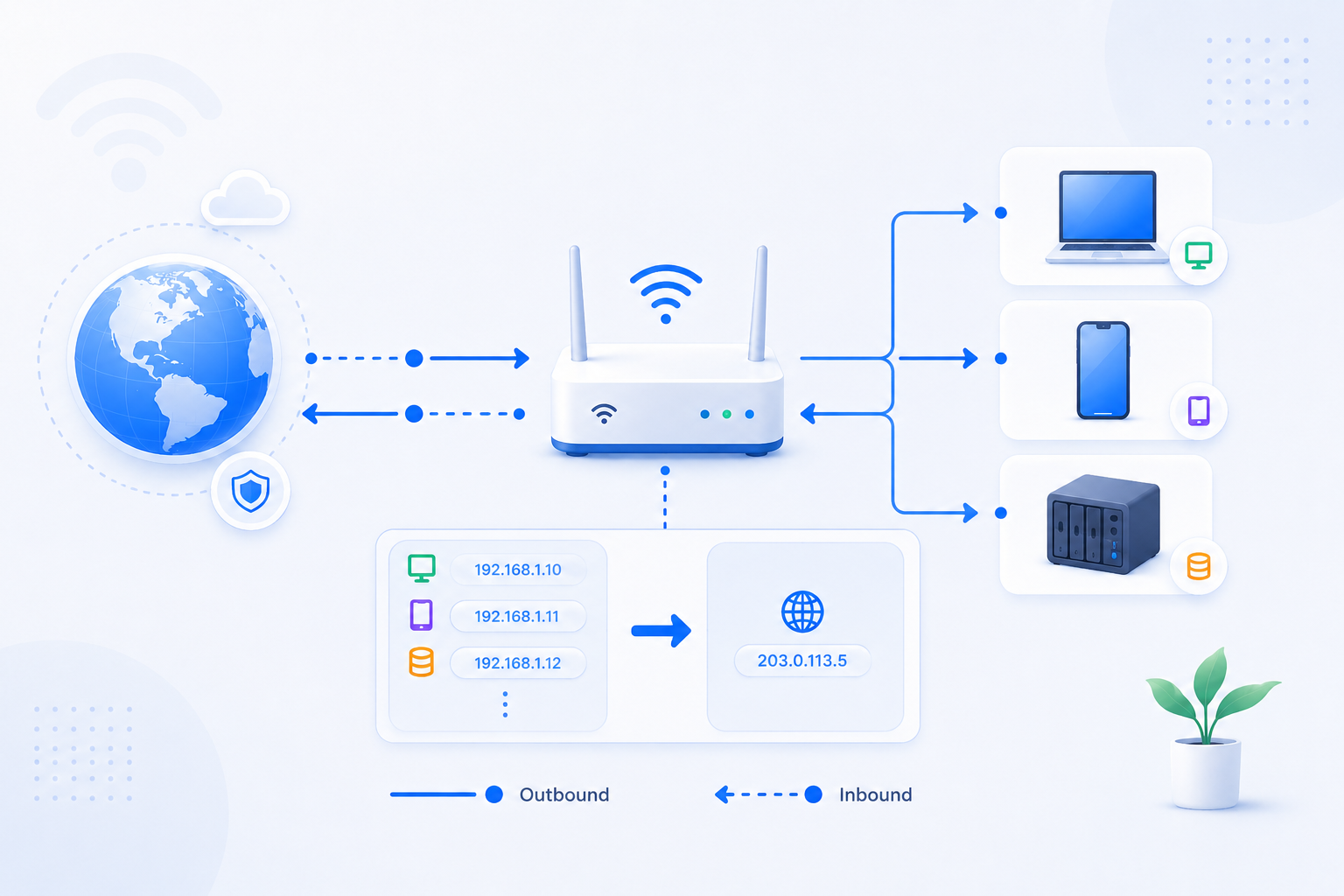
- Confirm the router rule points to the current internal IP of the target device, not to an old DHCP address from yesterday or before a reboot.
- If the target device should always receive inbound traffic, consider DHCP reservation or a stable static IP strategy so the forwarding rule does not silently drift to the wrong device.
- Verify that the protocol in the rule matches the service requirement. Some apps need TCP, others UDP, and some need both. A correct port number with the wrong protocol still fails.
- Inspect the local firewall on the target device and confirm inbound traffic is allowed for that port and app. This is especially important on Windows hosts running game servers, RDP, web services, or custom apps.
- Save and apply the router rule, then test from outside your network when possible. Local same-network tests can be misleading on routers that do not support consistent NAT loopback behavior.
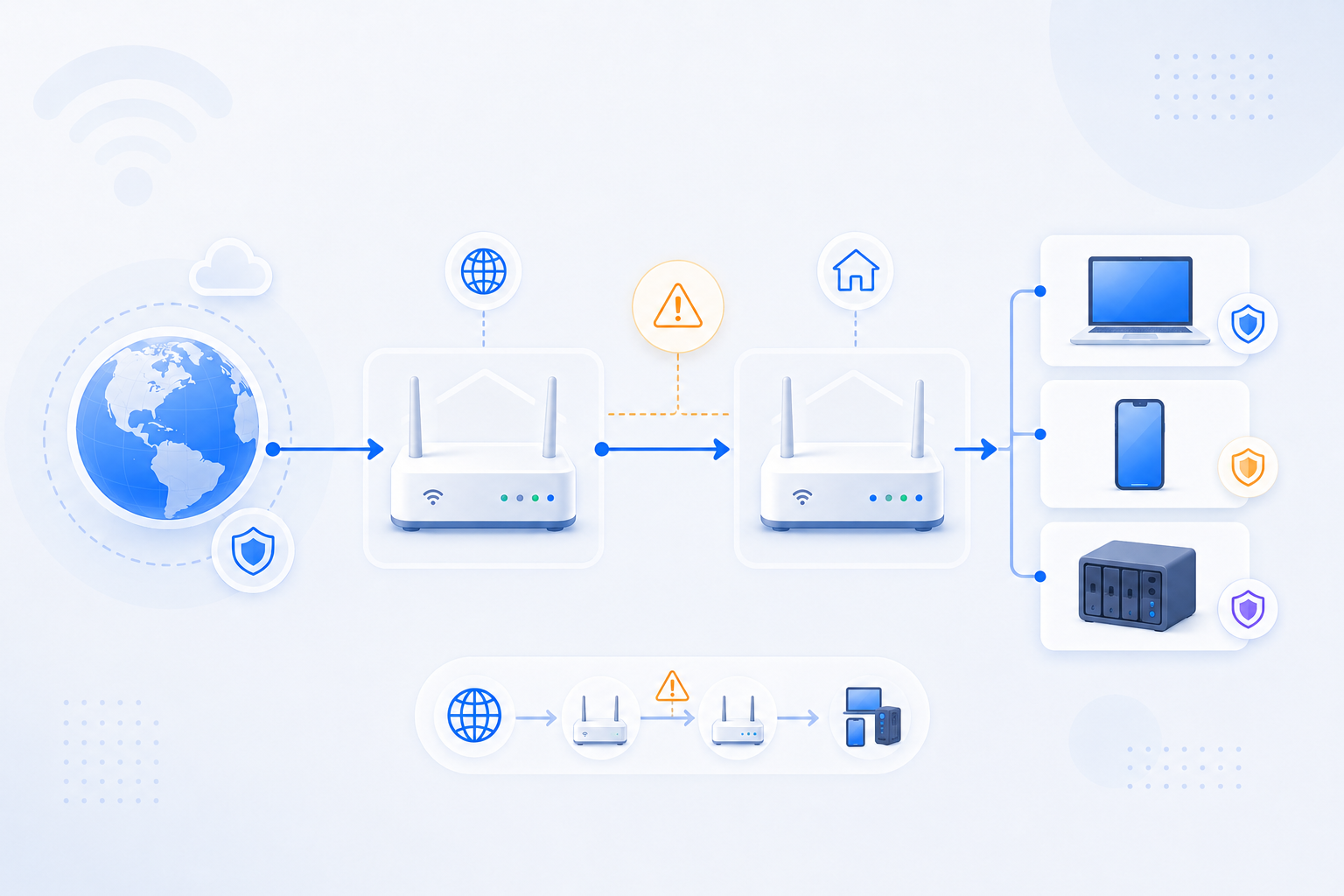
- If the result is still closed, compare your router WAN IP with your public IP and investigate Double NAT. If the public path itself is not truly yours, investigate CGNAT next.
- If the upstream path is clean but the port is still closed, look for ISP filtering, service-level binding issues, security software, or application-specific remote access toggles inside the app itself.
- Only after you know which layer is failing should you change the next thing. Randomly editing the router over and over is slower than a structured path check.
Checks and notes
- A saved router rule does not guarantee the service behind it is reachable.
- Testing from inside the same network can give misleading results on some routers.
- A port can appear closed simply because nothing is listening at the target device, even if the router rule is perfectly correct.
- Some apps also require their own remote access toggle, trusted network rule, or binding setting in addition to the router rule.
- If vendor cloud access works but direct access fails, the issue is more likely in the direct inbound path than in the app itself.
Warnings
- Avoid opening additional broad rules just to guess your way through the problem.
- Do not expose more ports than you need just because one service is failing.
- Do not assume the router is always the root cause. The target device and the upstream path are just as important.
FAQ
Why is the port still closed even though I saved the rule?
Because the router rule is only one part of the path. The target app must actually be running, listening on the correct port, reachable on the correct internal IP, allowed through the firewall, and reachable through the upstream NAT path. If any one of those layers fails, the external test still looks closed.
What should I check first when port forwarding fails?
Check whether the target service is really listening on the device you are forwarding to. This is usually the fastest first check because a router cannot deliver traffic to an app that is not actually accepting it.
How often is the wrong internal IP the problem?
Very often. Devices get new DHCP addresses after reboots, router restarts, or Wi-Fi reconnections. If the forwarding rule still points to an old internal IP, the router may be forwarding perfectly to the wrong device.
Can the firewall block a correctly forwarded port?
Yes. This is one of the most common patterns on Windows hosts. The router may forward the traffic correctly, but the local firewall or endpoint security still rejects the inbound connection before the app can answer.
What if the port checker is closed but the service works inside my network?
That usually means the problem is in the external path, not in the app's local startup. The next suspects are wrong internal IP targeting, protocol mismatch, firewall policy, Double NAT, CGNAT, or ISP-side filtering.
When should I stop changing router rules and suspect Double NAT or CGNAT?
When the service is confirmed to be listening, the internal IP is correct, the firewall is open, and the router rule is saved correctly, but the external test still fails. At that point, the upstream path deserves more attention than another random edit in the forwarding menu.
What should Korean home users watch for specifically?
A common Korean pattern is ISP hardware from KT, SK Broadband, or LG U+ in front of a personal router such as ipTIME. In those layouts, users often finish the rule on the personal router and stop there, while the ISP device still owns the real upstream path. If the rule looks right but the port stays closed, check that upstream device next.