
Port Forwarding Use Case
Remote Desktop Port Forwarding
Understand the forwarding flow for RDP, but treat direct exposure to the Internet as a high-risk choice that often needs a safer alternative.
Security and workflow review - May 5, 2026
Quick context
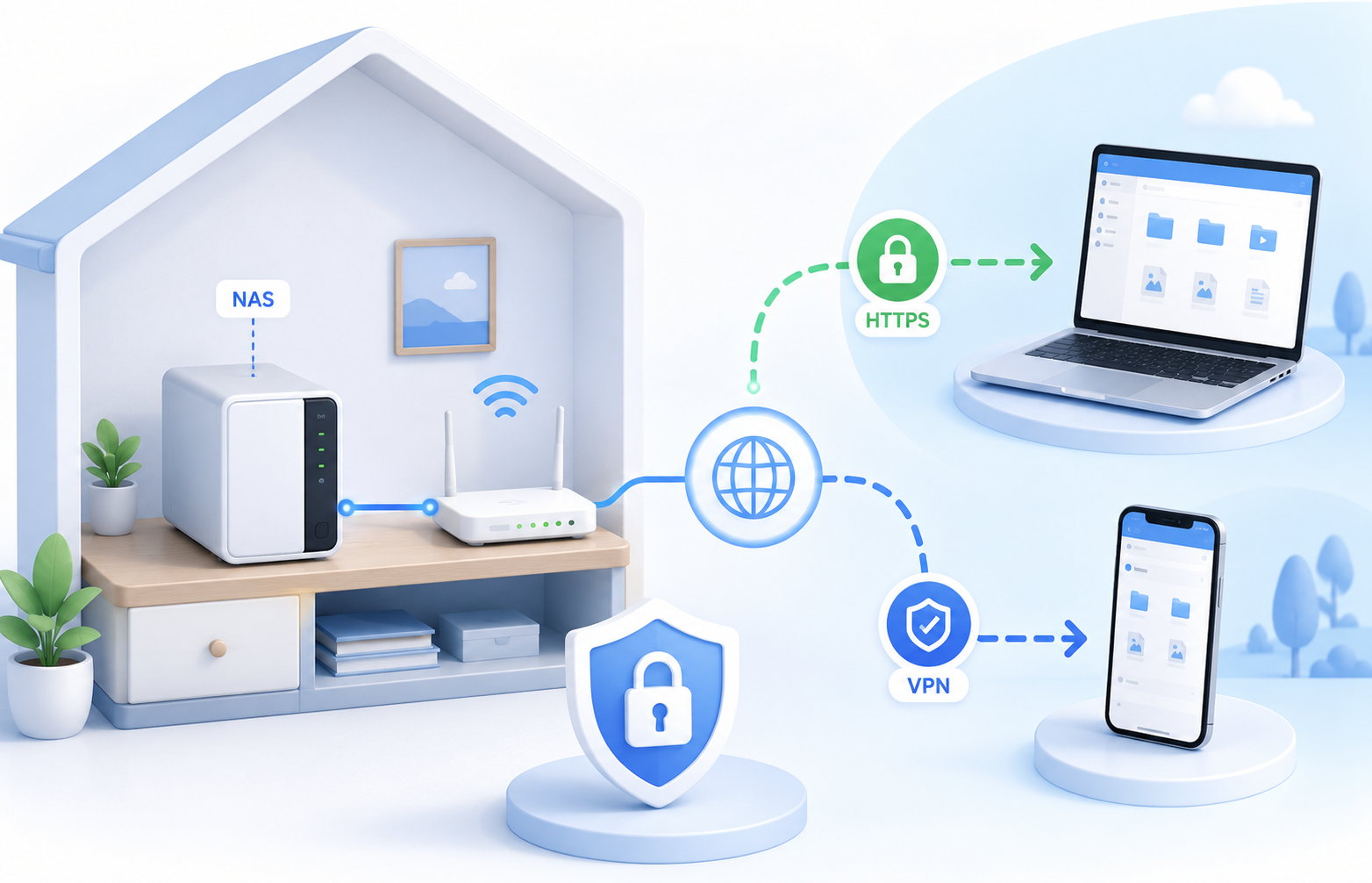
Remote Desktop is technically straightforward to forward, but it is one of the most important cases where a safer method such as VPN or relay-based remote access should be part of the recommendation.
30-second path
Use this order before you start changing settings.
Step 1Confirm the goalDecide whether this page is about login, open ports, Wi-Fi settings, or NAT diagnosis.Double NAT GuideStep 2Verify with a toolBefore changing settings, check the outside-visible IP, port, DNS, or NAT signal you need.Port CheckerStep 3Narrow the blockerIf the result is not expected, narrow it through firewall, double NAT, CGNAT, and wrong-router checks.Troubleshooting
What to know first
Default port3389
ProtocolTCP
Security noteDirect Internet exposure is risky
Step-by-step
- Verify the target Windows device is reachable on the local network first.
- If you must forward RDP, point the router rule at the correct internal IP and verify Windows Firewall allows inbound Remote Desktop traffic.
- Use a strong admin password and avoid exposing an account with weak credentials.
- Prefer a VPN, Zero Trust tunnel, or relay-based remote access product if public exposure can be avoided.
- After any rule change, test the public port carefully and document who can access the service.
Checks and notes
- If the port opens but remote login still fails, check Windows edition, local RDP enablement, and account policy.
- If the port never opens, firewall or double NAT is often the blocker.
Warnings
- Avoid exposing 3389 directly unless you fully understand the security implications.