
Port Forwarding Use Case
Minecraft Port Forwarding
Open the correct Minecraft server port and point the rule to the right internal device before you test from outside your network.
Preset and workflow review - May 5, 2026
Quick context
Minecraft is one of the clearest examples of port forwarding: the server must actually be running, your internal IP must stay stable, and the public test must hit the right protocol and port.
30-second path
Use this order before you start changing settings.
Step 1Confirm the goalDecide whether this page is about login, open ports, Wi-Fi settings, or NAT diagnosis.Port Forwarding HubStep 2Verify with a toolBefore changing settings, check the outside-visible IP, port, DNS, or NAT signal you need.Port Forwarding WizardStep 3Narrow the blockerIf the result is not expected, narrow it through firewall, double NAT, CGNAT, and wrong-router checks.Troubleshooting
Related visual cues
Helpful visuals for this page
Selected RouterWiz visuals that match this topic.
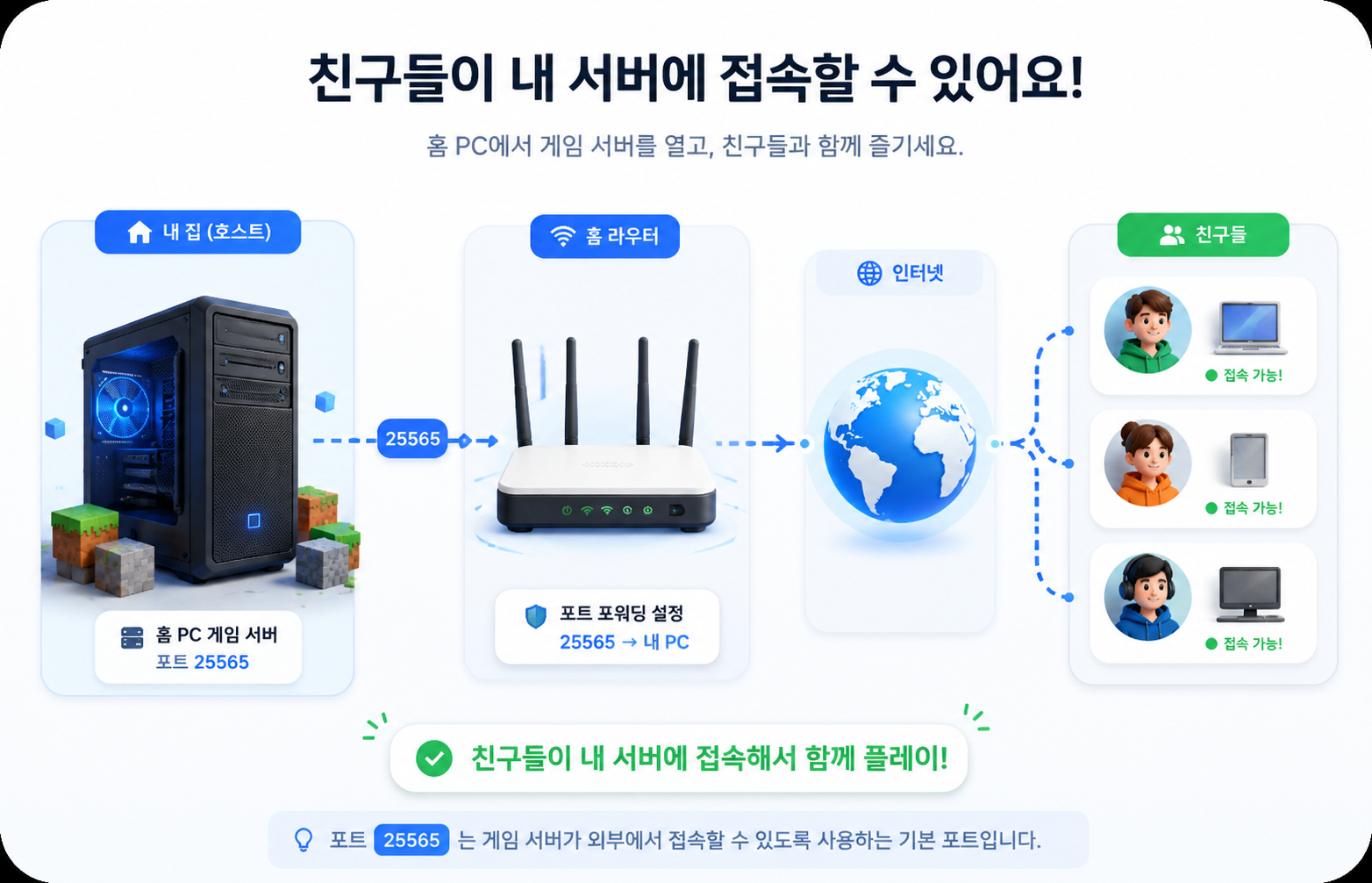
What to know first
Default port25565
ProtocolUsually TCP
Main riskInternal IP mismatch or no local listener
Step-by-step
- Confirm the Minecraft server is running on the target PC or host device.
- Reserve the internal IP or use a DHCP reservation so the router always forwards to the same address.
- Create a router rule using Service Name Minecraft, External Port 25565, Internal Port 25565, and the correct internal IP.
- Save and apply the router settings, then re-run a public port check.
- If the port is still closed, verify Windows Firewall, server binding, and double NAT or CGNAT conditions.
Checks and notes
- Test from outside the network when possible. Hairpin NAT behavior is not the same on every router.
- If you changed the server port in the app config, use that custom value instead.
Warnings
- Only expose the port you need and keep the host system updated.