
Router Login
Forgot Router Password
Use this page when you can reach the router login screen but no longer know the correct admin password or do not know whether the sticker password is still valid.
Expanded login workflow review - May 7, 2026
Quick context
Forgetting the router password is a login problem, not automatically a reset problem. First decide whether the page belongs to the right device, whether the password was changed before, and whether the sticker labels describe the admin password or only the Wi-Fi password.
Use this order before you start changing settings.
See the flow visually
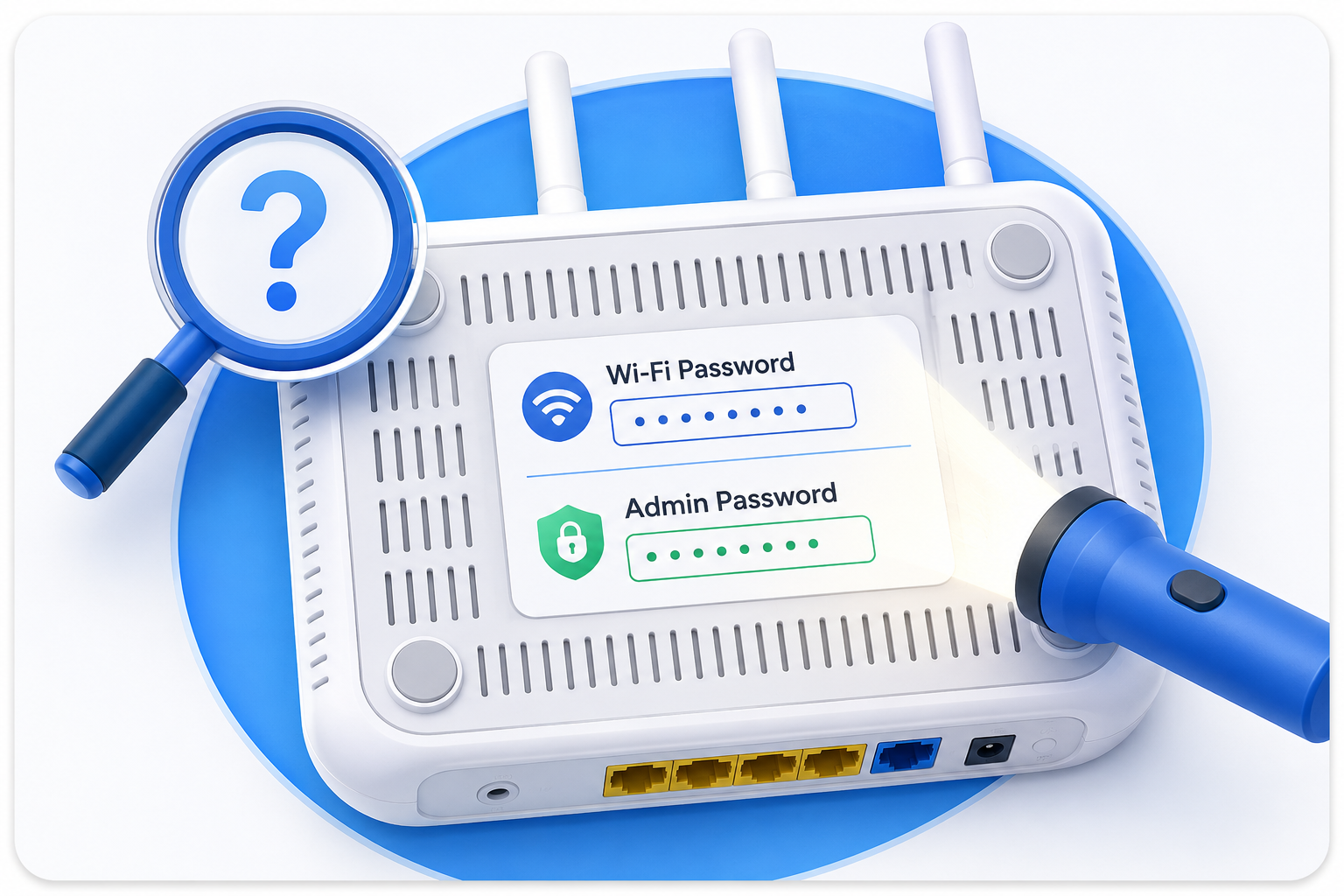
Read the label before you think about reset
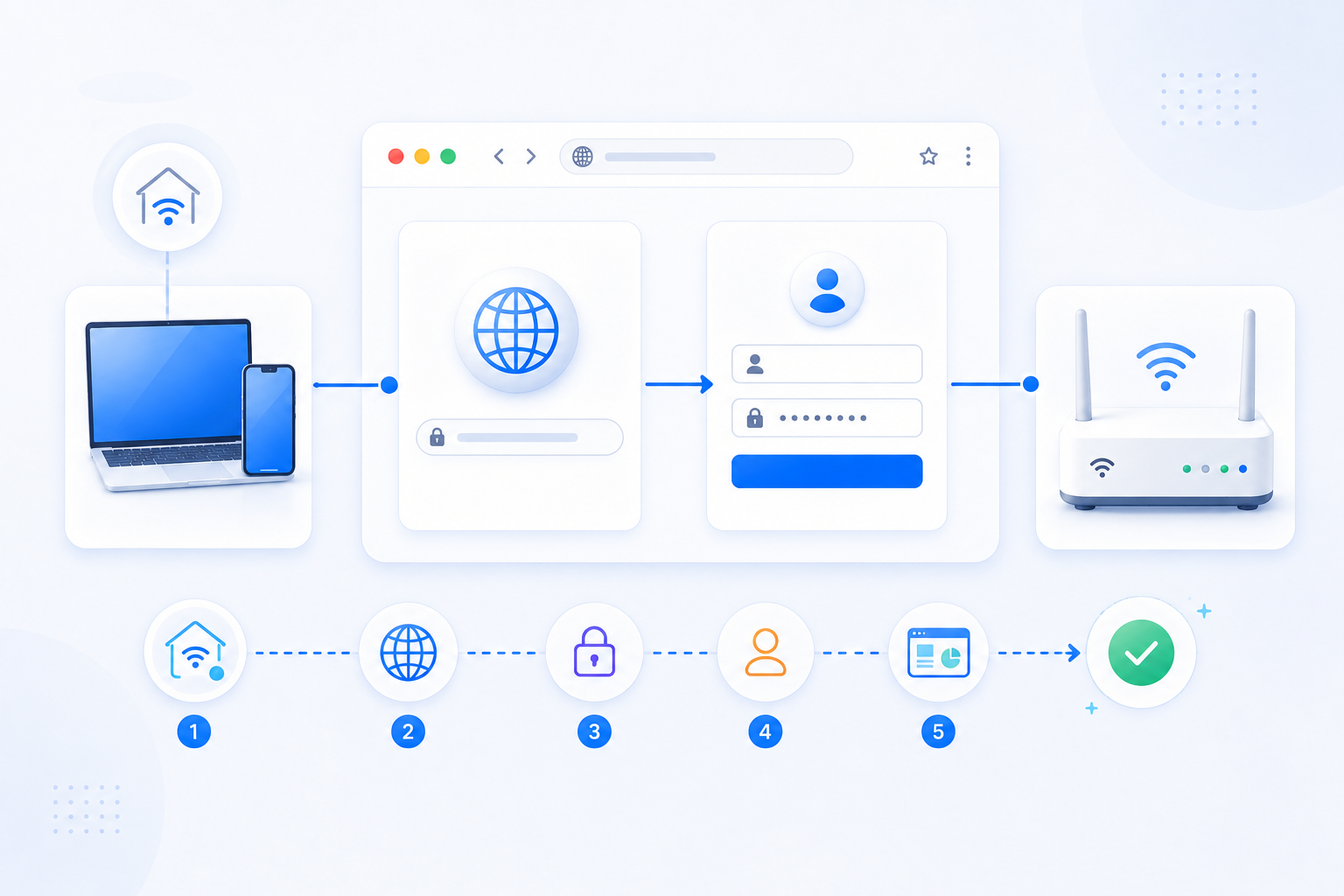
The fastest recovery often comes from identifying the correct password label and the correct device, not from wiping the router immediately.
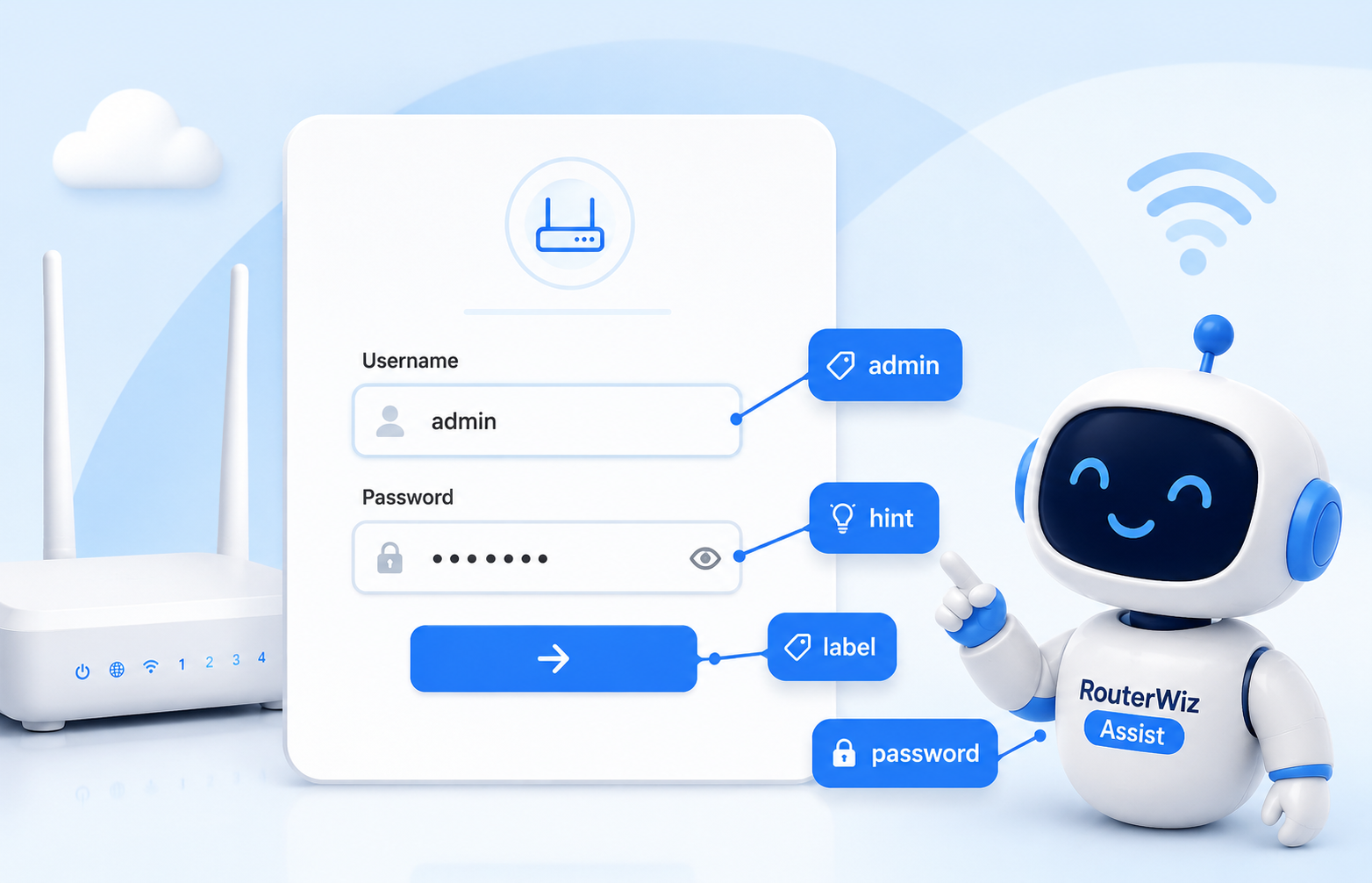
- Check whether the page is asking for username, password, or both.
- Separate Wi-Fi credentials from router admin credentials.
- Only move to reset after you understand the recovery cost.
Related visual cues
Helpful visuals for this page
Selected RouterWiz visuals that match this topic.
What to know first
Step-by-step
- Confirm that the login page belongs to the correct router or gateway first.
- Read the device sticker carefully and look for labels such as Admin Password, Login Password, Device Password, or Router Password.
- Check whether the page uses a username and password pair, a password-only flow, or a password plus captcha flow.
- If the admin password was changed previously, the original sticker value will no longer work.
- Only move toward reset or recovery after you understand what settings could be lost.
Checks and notes
- Many users accidentally type the Wi-Fi password into the router admin page.
- ISP gateways and personal routers in the same home often use different credential schemes.
- If a family member or installer changed the password earlier, the default value is no longer authoritative.
Warnings
- Do not keep trying random password lists from third-party sites.
- Do not reset the device until you know the WAN, IPTV, or custom recovery steps.
FAQ
How do I know whether the sticker password is the admin password?
Read the exact wording. Labels that mention Wi-Fi, SSID, Wireless Key, or WPA are usually for wireless access, not for the router admin page.
What should I do if the router uses a captcha too?
Treat it as a normal login page but make sure you are solving the captcha on the correct device page first. Captcha does not change the need to verify the device, the label, and any previous password changes.
Recommended references
Use these after the RouterWiz guide when you want to confirm password-recovery wording, admin-label terminology, or the difference between login recovery and reset.
RouterWiz should still lead the workflow. These references are best used to double-check vendor terms and recovery options before you decide to reset hardware.
Official password recovery references
Use these when you want to confirm how vendors describe admin-password recovery or default login handling.
TP-Link Router Password Reset | Forgot Login Password
TP-Link Support
TP-Link's router password recovery guide explains what to do when the login password no longer works and when reset becomes necessary.
Useful when users need a manufacturer-style explanation of what can and cannot be recovered from the sticker or admin page.
How do I enable the admin password recovery feature on my NETGEAR router?
NETGEAR Support
NETGEAR explains its password-recovery feature and the conditions under which forgotten admin access can be recovered without a blind reset.
Helpful for showing that some vendors separate admin-password recovery from simple default-password assumptions.
General router-login context
Use this when users first need to confirm they are on the correct device and the correct login screen before they keep trying passwords.
Router Login - Access Your Router Admin Panel
WhatIsMyIP.io
A broad router-login reference that covers common admin addresses, default login ideas, and why the right device page matters first.
Useful as a secondary read when users are mixing up login hosts, default credentials, and device roles.