
Router Login
How to Reset a Router Safely
Use this guide only after login recovery options are exhausted and you understand the configuration, ISP, and downtime impact of a factory reset.
Expanded login workflow review - May 7, 2026
Quick context
A factory reset is a last-resort recovery step. It can restore default login credentials, but it can also erase WAN setup, Wi-Fi names, port forwarding rules, DHCP reservations, IPTV options, and other custom network settings.
Use this order before you start changing settings.
See the flow visually
Reset is not just a password action
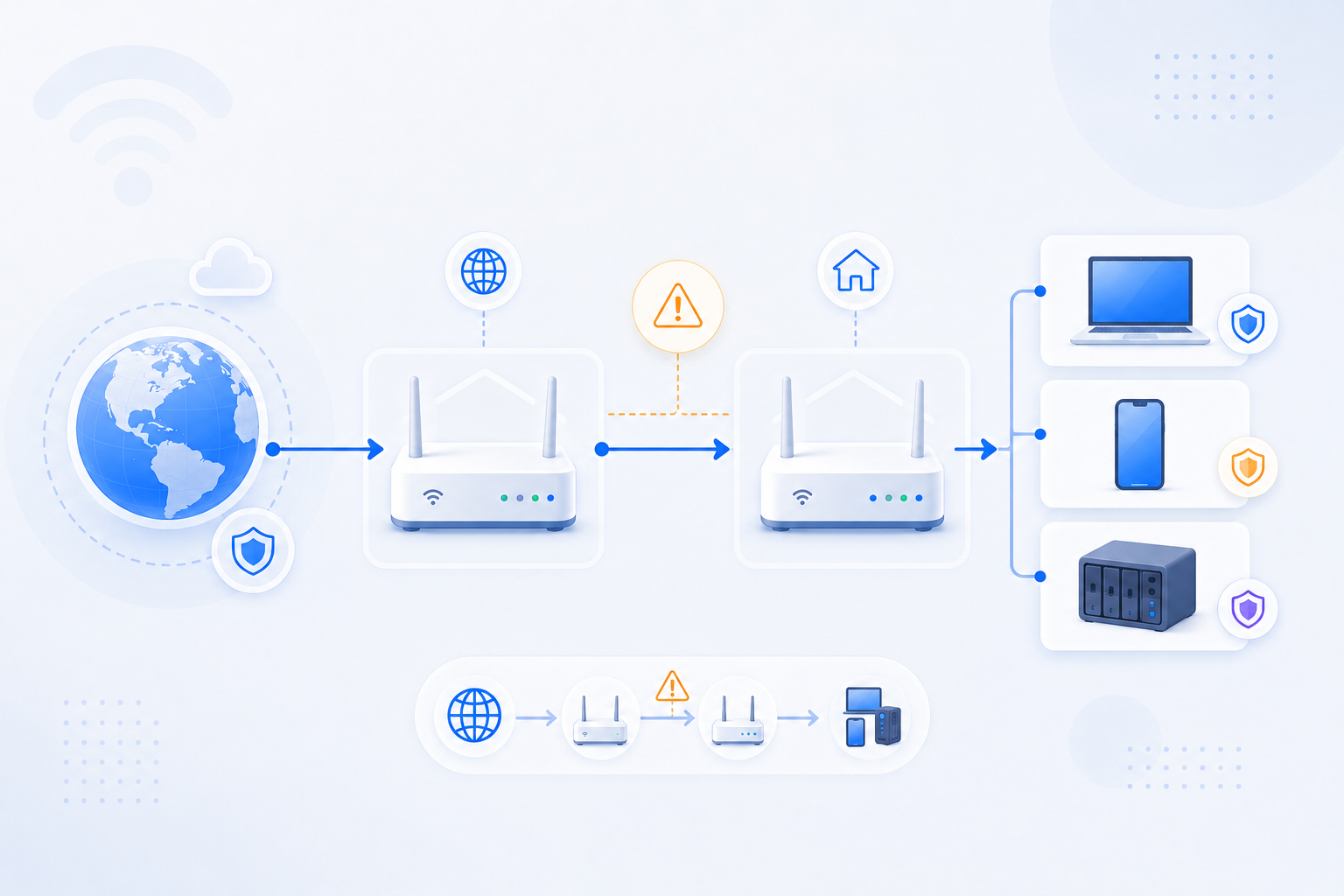
A reset changes the whole device state, so the safe path is documenting the network first and only then deciding whether recovery is worth the disruption.
- Login recovery is the goal, not needless downtime.
- Capture router role, WAN path, and dependent services first.
- Rebuild methodically after the reset if you must proceed.
What to know first
Step-by-step
- Document the current network as much as possible before resetting: router model, ISP hardware, Wi-Fi name, known IP ranges, and any forwarding rules.
- If the router UI is still reachable, back up the config if the platform supports it.
- Understand what other services depend on the router, such as IPTV, voice, CCTV, NAS, or remote access tools.
- Reset only when login recovery is no longer possible and the recovery path is understood.
- After reset, restore the admin password safely, rebuild Wi-Fi, and then rebuild forwarding or WAN-specific settings carefully.
Checks and notes
- Some ISP devices need provider-specific reprovisioning or bundled settings after reset.
- If the network uses multiple routers, confirm which device you are resetting and what role it plays in the chain.
- A reset may solve login access while creating new WAN or Wi-Fi downtime if done blindly.
Warnings
- Never reset provider-managed gear casually if you do not know the ISP recovery path.
- Do not assume port forwarding, static DHCP, or custom DNS entries will survive the reset.
FAQ
Will a reset restore the default admin password?
Usually yes, but that only helps after the device is fully reinitialized. It does not remove the need to rebuild WAN, Wi-Fi, and any custom routing or forwarding configuration.
What should I capture before I reset?
Capture the model name, current address range, any visible WAN settings, Wi-Fi names, DHCP reservations, device list, and any forwarding or special service rules you still know about.
Recommended references
Use these after the RouterWiz guide when you need vendor confirmation about what a factory reset changes and what setup work may be required afterward.
RouterWiz should still lead the decision. These links are best used to confirm reset wording, hardware steps, and the cost of rebuilding setup after the reset.
Official reset references
Use these when you want a manufacturer explanation of the reset process and the differences between reset methods.
Reset TP-Link Router | Factory Reset Guide: 3 Methods
TP-Link Support
TP-Link explains multiple reset methods, including when to use the reset button and what changes after factory reset.
Useful when users need a vendor-confirmed explanation of the physical reset process before taking action.
TP-Link Router Setup | Web Management Page Guide
TP-Link Support
A setup guide for the post-reset state, showing what users typically need to rebuild after returning the device to defaults.
Helpful because reset decisions are safer when users can see the recovery path that follows.