
Router Login
192.168.0.1 Login Guide
Use this guide when 192.168.0.1 is the most likely gateway, especially in ipTIME-style or Korea-first home setups, but you still need to verify that it is the real admin path.
Expanded high-traffic login page review - May 7, 2026
Quick context
192.168.0.1 is a very common private gateway, especially in homes where ipTIME-like router behavior or cable-style router layouts appear. The address is familiar, but users still lose time when they open the wrong device, trust the wrong credentials, or confuse the router admin page with ISP or public-internet information.
Use this order before you start changing settings.
See the flow visually
192.168.0.1 often means the personal router, not the whole path
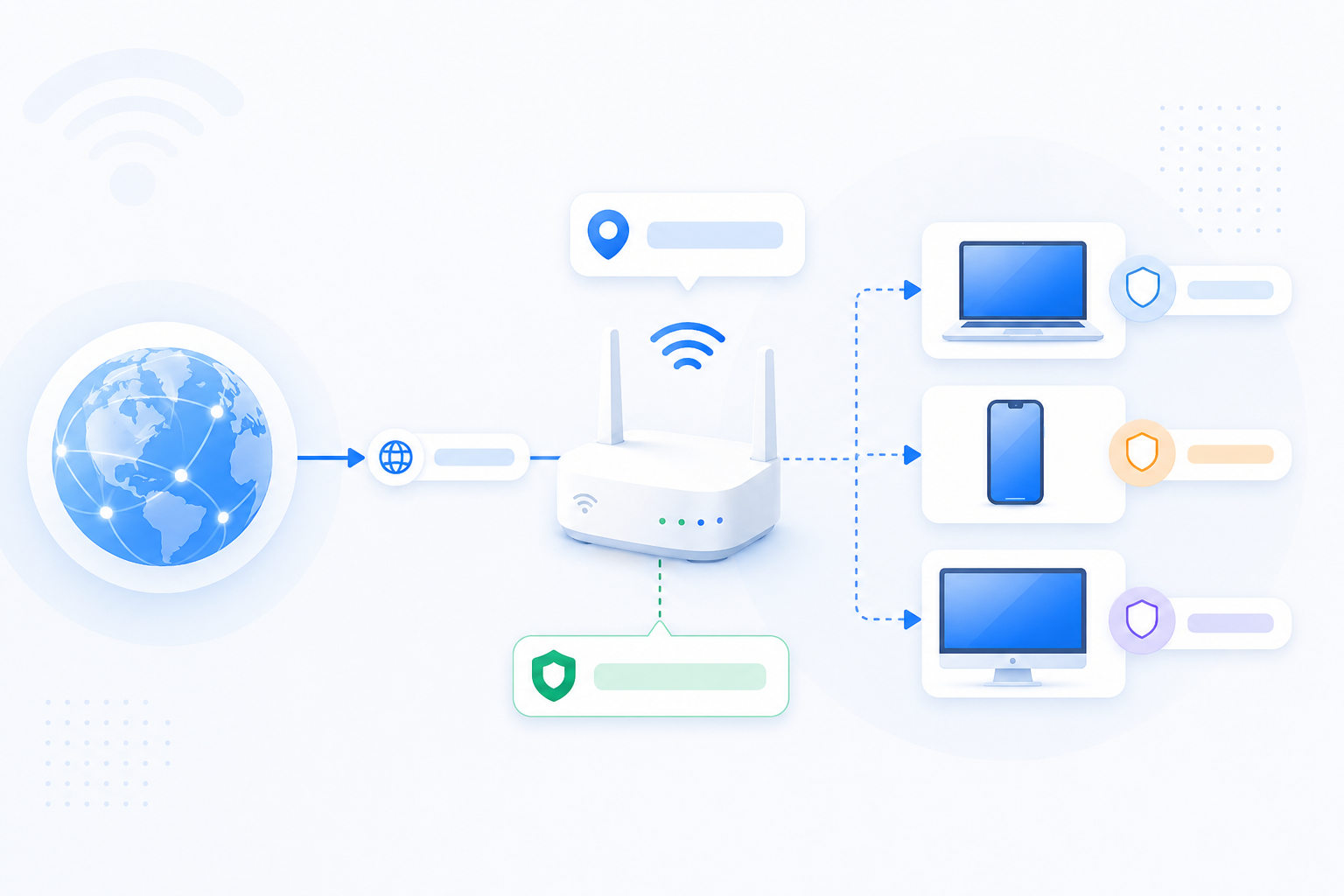
In many Korea-first homes, 192.168.0.1 is where the personal router opens, but upstream ISP equipment still matters for remote access and port forwarding.
- Personal router login does not remove upstream path checks.
- Double NAT can still exist behind a correct 192.168.0.1 login.
- Router login and port-forward success are related, but not identical.
What to know first
Step-by-step
- Confirm that your phone or PC is actually connected to the router network you want to manage.
- Open http://192.168.0.1 and identify whether the page belongs to the expected router brand or to another device in the path.
- If the page does not open, check the current device's Default Gateway before trying more guesses or vendor host names.
- Use the device sticker and router role first, instead of assuming that a common admin password still applies.
- If the page opens on a Korea-first home setup, decide whether this is the personal router where real LAN devices live or only an upstream device in a larger chain.
- If the goal is port forwarding, continue only after the correct target router is confirmed.
Checks and notes
- In Korea-first homes, 192.168.0.1 often points to the personal router, but the upstream ISP gateway can still affect forwarding.
- Mesh or app-managed systems may still expose a different hostname or force some settings into the vendor app.
- The most expensive mistake is not the password guess. It is spending time inside the wrong router.
Warnings
- Do not confuse the public IP you see on websites with the private router gateway at 192.168.0.1.
- Do not assume that Wi-Fi credentials and router admin credentials are the same.
- Do not skip the upstream-path check if the home uses ISP gear plus a personal router.
FAQ
Why is 192.168.0.1 especially important in Korea-first setups?
Because personal routers in Korea-first homes often use 192.168.0.1 while the ISP gateway sits in front on another subnet. That makes login success useful only after the device path is understood.
What if 192.168.0.1 works but remote access still fails later?
That usually means the local router login was correct, but there is still an upstream issue such as double NAT, missing upstream forwarding, or CGNAT.
Should I trust saved browser credentials for 192.168.0.1?
Only if you are sure the page belongs to the exact same device as before. A reused IP on a different router or gateway can make saved credentials misleading.
Recommended references
Use these after the RouterWiz guide when you want a second source for 192.168.0.1 login behavior, especially around TP-Link/NETGEAR-style admin access and gateway confirmation.
RouterWiz should remain the first workflow. These references are best used to confirm that 192.168.0.1 is common but still needs to be verified against the real gateway on the current network.
Official guidance
Use these to confirm how current router vendors document browser-based local login.
How to Log In to Your TP-Link Router
TP-Link
TP-Link's login guide states that the admin panel can be reached through tplinkwifi.net or 192.168.0.1 when connected to the router.
This reinforces RouterWiz's rule that 192.168.0.1 should be entered directly while connected to the right router, not guessed from the public Internet side.
Router Login Page - How to Access Your NETGEAR Router
NETGEAR
NETGEAR's current router login page explains that its routers commonly use 192.168.1.1 or 192.168.0.1 and includes basic troubleshooting for when the page does not load.
Useful as a vendor-backed second source for common 192.168.0.1 behavior and login-page troubleshooting.
Helpful explainers
Use these when you want a plain-language IP-specific explanation or quick video-style context.
192.168.0.1: Router IP Address & Login Guide
WhatIsMyIP.com
A dedicated 192.168.0.1 page covering what the address means, common login combinations, and how it differs from a public IP.
Helpful when a user needs an IP-specific explainer that matches RouterWiz's guidance about private admin addresses and local-only access.
TP-Link Login – Router Admin Login and IP Address
WhatIsMyIP.com
A brand-specific explainer that mentions 192.168.0.1 among the common TP-Link admin addresses.
Useful when users need a bridge between a generic IP page and a vendor-oriented login explanation.