
Router Login
Router Admin Page Not Opening
Use this guide when 192.168.1.1, 192.168.0.1, 10.0.0.1, or a router hostname such as tplinkwifi.net never opens the local admin page.
Expanded login issue review - May 7, 2026
Quick context
When the router admin page does not open, the problem is usually local. The most common causes are using the wrong gateway, being connected to the wrong device, having a second router in front, or relying on a hostname that no longer resolves to the real local admin page.
Use this order before you start changing settings.
See the flow visually
Most admin-page failures are path problems first
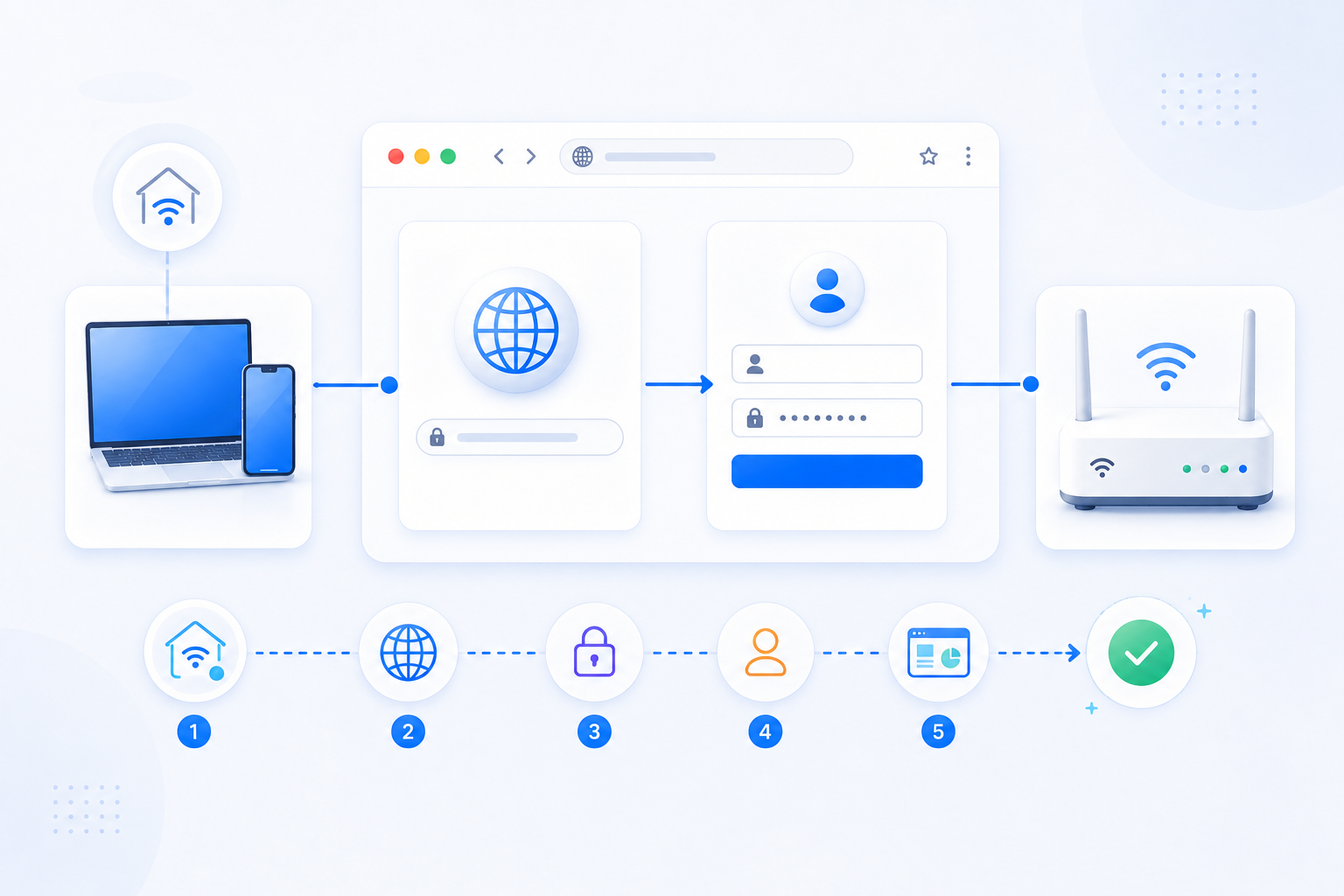
Before blaming the password or the router itself, confirm the real gateway, the actual device role, and whether a second router or ISP gateway is opening first.
- Use the real gateway, not a guessed address.
- Confirm which box is opening before changing anything.
- Browser and hostname issues are common even when the network still works.
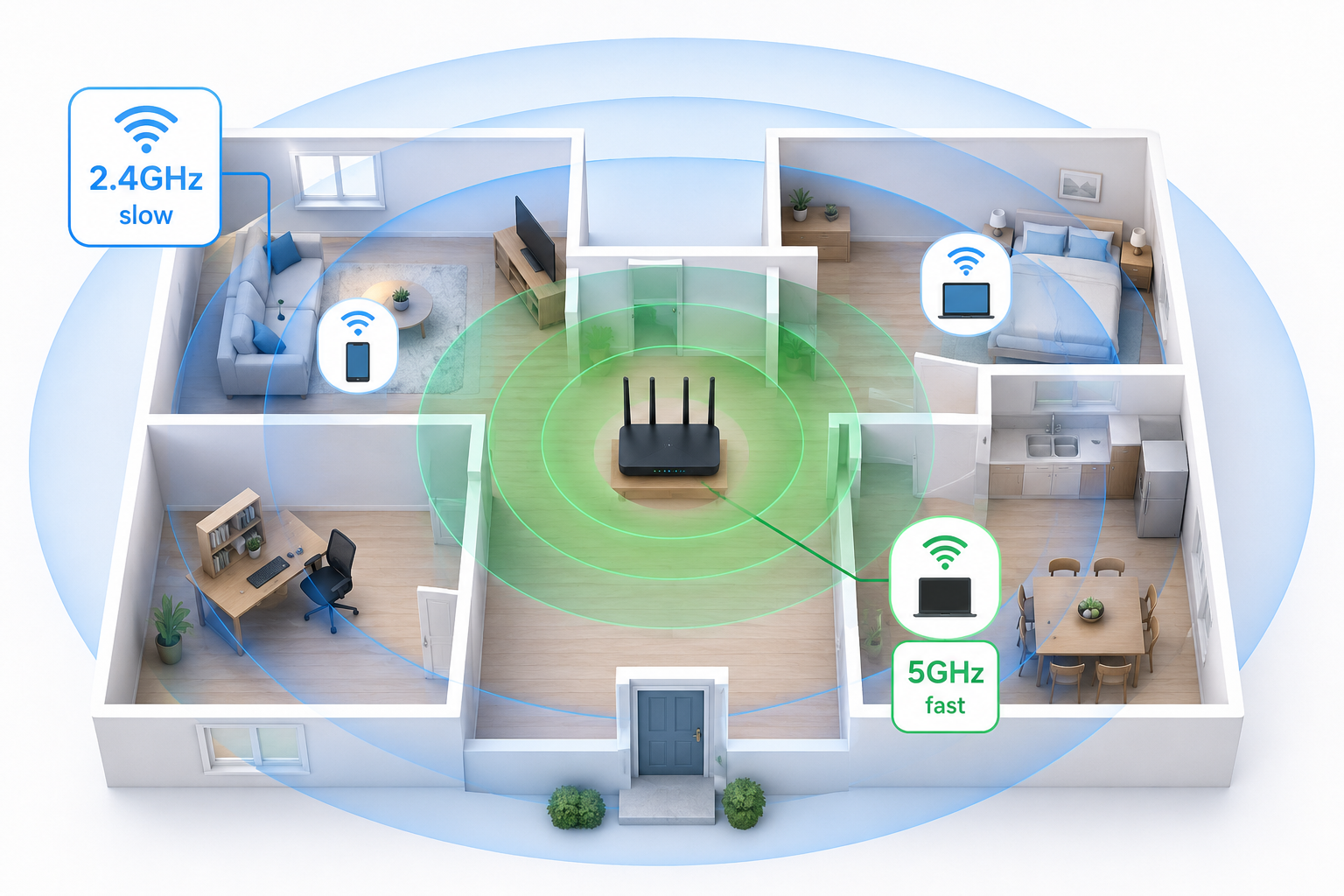
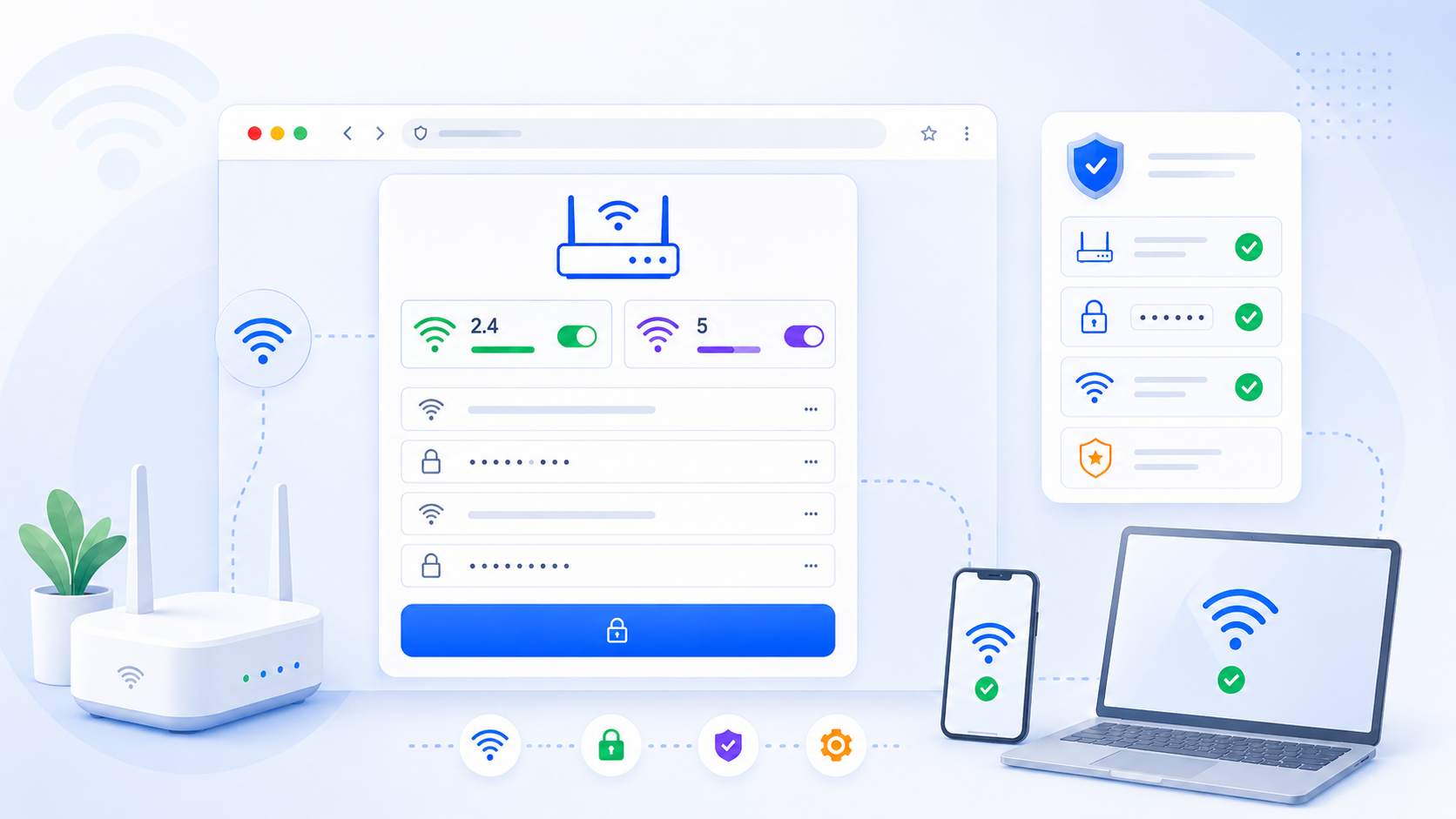
Related visual cues
Helpful visuals for this page
Selected RouterWiz visuals that match this topic.
What to know first
Step-by-step
- Connect to the same Wi-Fi or Ethernet segment as the router you want to manage, and temporarily disable mobile data, VPN, or proxy software that may change the path.
- Read the Default Gateway from the current device instead of retrying guessed admin addresses from memory or web lists.
- If a vendor hostname such as tplinkwifi.net or routerlogin.net fails, try the raw local gateway IP over HTTP and HTTPS before assuming the router is offline.
- Compare the branding on the page, the device sticker, and the gateway path to confirm whether the page belongs to the main router, an ISP gateway, or only a secondary Wi-Fi device.
- If the page still does not open, test a second browser or a second device on the same network and clear cached redirects or stale hostname resolution.
- Only after the gateway, local path, and device role are confirmed should you move to password recovery, reboot, or last-resort reset actions.
Checks and notes
- Internet access can still work even when the router admin page fails because ordinary web traffic and local router management do not always use the same hostnames or browser state.
- If a second router or ISP gateway exists, the first device you reach may not be the one that should handle port forwarding or advanced settings.
- If the gateway responds to ping but the page does not load, the issue may be browser, certificate, or local web UI behavior rather than a dead router.
Warnings
- Do not trust a generic internet list of default router IPs over the actual Default Gateway shown on your current device.
- Do not reset an ISP-managed gateway just because the admin page is not opening. The problem may still be the wrong device or wrong path.
- Do not confuse a Wi-Fi outage, captive portal, or browser DNS cache issue with a true router hardware failure.
FAQ
Why does the internet still work even though the router page does not open?
Because normal web traffic can still leave the network while the local admin path fails. Wrong hostnames, cached redirects, browser issues, or an upstream ISP gateway can break the admin page without killing general internet access.
Should I try HTTP or HTTPS when the admin page does not open?
Try both if the vendor normally supports both, but start with the actual local gateway IP first. A hostname can fail while the raw IP still works, and some routers also redirect differently depending on the protocol.
What if the page that opens belongs to the wrong router?
That usually means you have an ISP gateway, a second router, or a secondary device in the path. Confirm which device owns NAT and which one you actually need before changing settings or trying password recovery.
Recommended references
Use these after the RouterWiz guide when the router page does not open at all, loads the wrong device, or keeps failing before the login screen appears.
RouterWiz should stay the main troubleshooting flow. These links are best used to confirm vendor terminology, OS gateway checks, and known access-recovery steps.
Official access troubleshooting
Use these when you want a vendor-style explanation of what to check before assuming the router is broken.
Why cannot I log in to the TP-Link web management page?
TP-Link Support
TP-Link walks through common causes such as the wrong local IP, browser issues, connection path problems, and device conflicts that stop the admin page from opening.
This matches the RouterWiz decision order closely: confirm the local path first, then check browser, gateway, and device-role issues before trying reset.
I can't access my router; what do I do?
NETGEAR Support
NETGEAR explains how to verify local connection, gateway address, browser behavior, and physical path issues when the admin page never loads.
Useful as a second vendor reference because it reinforces the same idea: most admin-page failures come from the local path, not from remote internet issues.
Helpful gateway checks and walkthroughs
Use these when you need a quick visual or OS-level explanation of how to confirm the real admin address on the current network.
Finding Your Default Gateway Address
WhatIsMyIP.com
A practical walk-through of how to read the Default Gateway on common operating systems before trying more admin URLs.
Helpful when users keep retrying 192.168.1.1 or 192.168.0.1 without first checking which gateway the current device actually uses.
Find Your Router IP Address on Any Device (Video Guide)
WhatIsMyIP.com
A short visual guide that shows where to find the router IP on common device types before opening the admin page.
Useful for users who understand the admin-path problem faster from a short visual walkthrough than from text-only instructions.