
Router Login
192.168.1.1 Login Guide
Use this page when 192.168.1.1 is the most likely router address but you still need to decide whether it belongs to the main router, an ISP gateway, or the wrong device in the path.
Expanded high-traffic login page review - May 7, 2026
Quick context
192.168.1.1 is one of the most common home router admin addresses, but the address alone is not enough. The real job is confirming that this is the active gateway for the device you are using right now and that the page you reach actually belongs to the router that matters for the task ahead.
Use this order before you start changing settings.
See the flow visually
192.168.1.1 is common, but the device role still matters
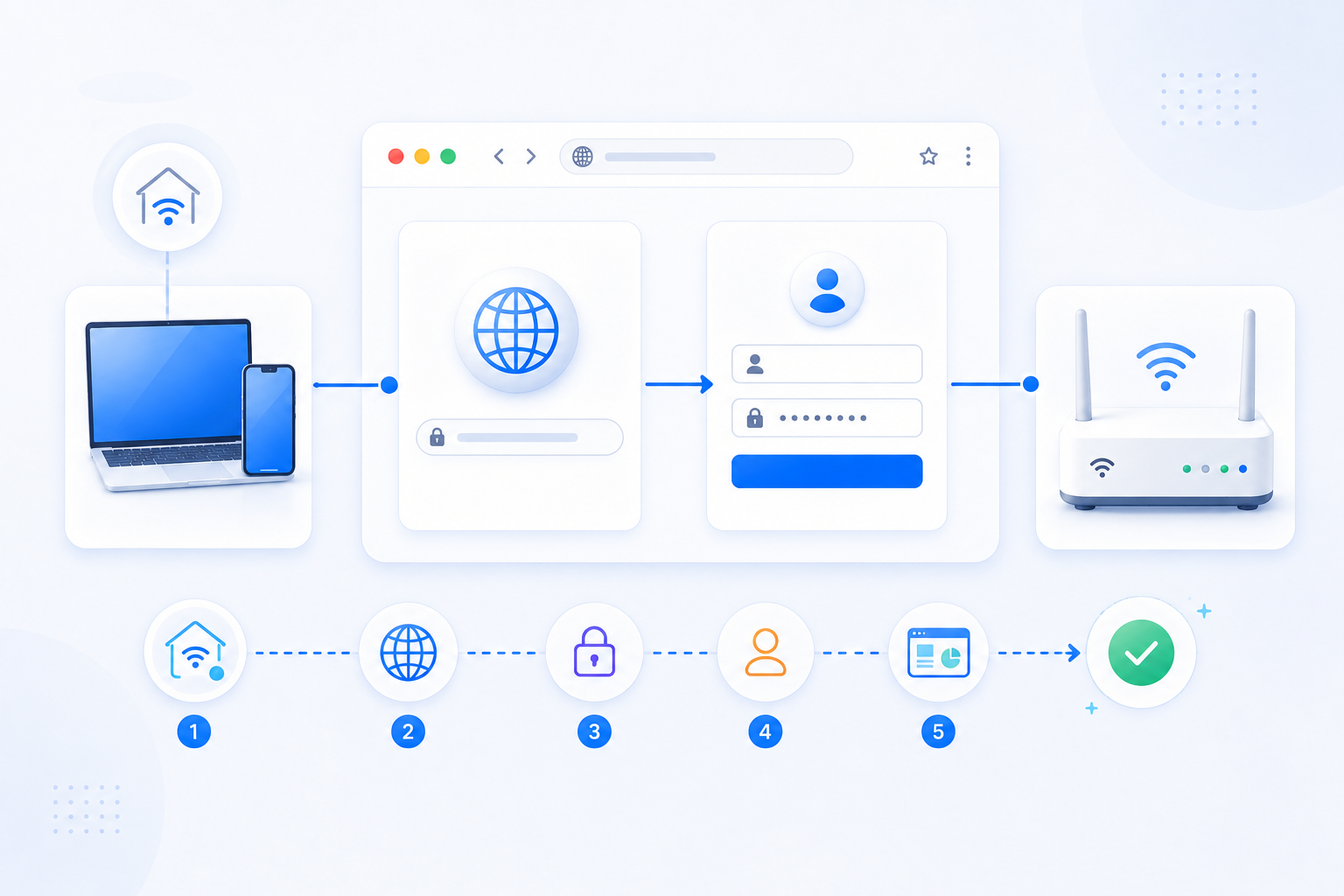
A familiar admin IP is only the start. RouterWiz should help users confirm whether the page belongs to the real NAT router or only to the first visible device in the chain.
- Common address does not guarantee the right device.
- Branding, sticker, and gateway path must match together.
- Login success is only useful if you are inside the correct router.
What to know first
Step-by-step
- Connect to the same Wi-Fi or Ethernet network as the router you want to manage before trying the page.
- Open http://192.168.1.1 and confirm whether the login screen belongs to a retail router, an ISP gateway, or another network device with a similar admin UI.
- If nothing opens, stop retrying guesses and confirm the real Default Gateway on the current device first.
- If the page opens, compare the logo, host name, and device sticker so you know exactly which box you are about to manage.
- If your real goal is port forwarding or remote access, decide whether this device actually owns NAT or whether another router sits behind or in front of it.
- Only after the router path is clear should you move to password recovery, forwarding rules, or advanced settings.
Checks and notes
- Many households reach 192.168.1.1 on an ISP gateway first and still need to move to a second router later.
- A page can look correct and still be the wrong box for the setting you actually need.
- If the admin page partially loads but login fails, the problem is often credentials or browser state, not the IP itself.
Warnings
- Do not assume every 192.168.1.1 page belongs to the final router that handles port forwarding.
- Do not trust old default-password lists until the exact model and device role are confirmed.
- Do not reset the router just because 192.168.1.1 did not open immediately.
FAQ
What if 192.168.1.1 opens a page but it is not the router I expected?
That usually means another router or ISP gateway is in the path. Confirm which device owns NAT and which one actually needs to be changed before you continue.
Can 192.168.1.1 still be correct even if port forwarding does not work later?
Yes. You may still be logging into the upstream device in a double-NAT setup, or the correct router may need a second upstream change such as bridge mode, DMZ, or IP passthrough.
Why is 192.168.1.1 so common?
It is a widely used private gateway address for consumer routers and ISP hardware, which is why it appears often in guides. The address is common, but the device role behind it still varies by network.
Recommended references
Use these after the RouterWiz guide when you want a second source for the 192.168.1.1 login flow, especially around default gateway checks, TP-Link-style login patterns, and what to do when the page does not open.
RouterWiz should remain the main workflow. These references are best used to confirm common 192.168.1.1 patterns and to compare official manufacturer guidance against generic IP-login explanations.
Official guidance
Start here when you want manufacturer-style steps that explain how local admin access should work from a device already connected to the router.
How to Set Up Your TP-Link Wi-Fi Router on the Web Management Page
TP-Link
TP-Link's current web-management setup guide explains that the admin page can open at tplinkwifi.net, 192.168.0.1, or 192.168.1.1 from a device connected to the router.
Useful for confirming that 192.168.1.1 should be typed directly in the browser while connected to the router, not searched in a search engine or tested from the wrong network.
How to Find Your TP-Link Router LAN IP Address
TP-Link
A current TP-Link guide on checking the actual router LAN IP and reading the default gateway on each operating system.
This supports RouterWiz's core rule that 192.168.1.1 is only useful after you verify that it is your current gateway on this network.
Helpful explainers
Use these when you want a direct IP-specific explanation or a quick video walkthrough.
192.168.1.1 Login – Access Your Router Admin Page
WhatIsMyIP.com
A dedicated 192.168.1.1 page covering how to open the admin page, how to confirm the gateway, and what to do if the page doesn't load.
Helpful as a generic second explanation that matches RouterWiz's advice to confirm the real gateway before retrying passwords.
How to Access 192.168.1.1 Router Login (Video Guide)
WhatIsMyIP.com
A short video walkthrough showing how to type 192.168.1.1 directly in the browser and what to check when credentials no longer work.
Good for beginners who understand the login flow faster through a visual walkthrough than through text alone.